
How can I add search tags or filters to help customers find products?
Adding search tags and product filters in Shopaccino makes it easier for customers to discover products based on keywords, categories, and specifications like size, color, or material. This document explains how to create search tags and filters, and how to assign them to products.
Access Search Tags Section
- From the left-side menu, go to Products > Search Tags.
Create a New Search Tag
- Click on Add Search Tags.
-
Fill in the following fields:
- Name: Enter a clear tag name (e.g., Summer Collection, Cotton T-Shirts).
- Description: Add a short description.
- Redirect: Define where this tag redirects (e.g., category or product page).
-
SEO Details (Optional):
- Meta Title
- Meta Keywords
- Meta Description
-
Banner/Images (Optional):
- Upload banner images if needed.
- Add ALT text for images.
-
Display Options:
- Tick Show Product Page if the tag should display on product pages.
- SEO URL: Add a custom SEO-friendly URL.
- Display Order: Set how tags are sorted.
- Visibility: Choose to show or hide on the storefront.
- Click Save.
Access Product Filters Section
- From the left-side menu, go to Products > Product Filters.
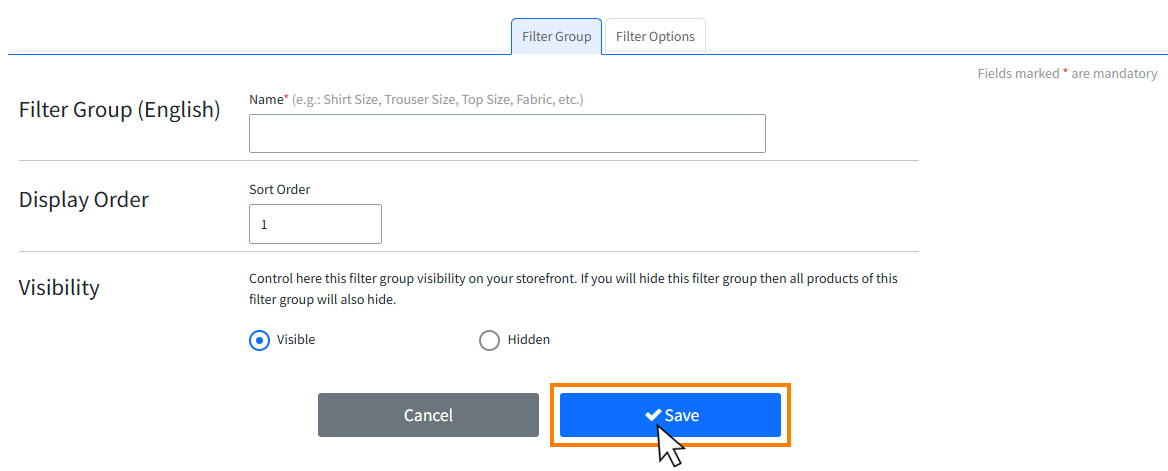
Create Filter Groups
- Click on Add Filter groups.
-
Fill in the following fields:
- Name: (e.g., Size, Color, Material).
- Display Order: Controls display position.
- Visibility: Show or hide the group on the storefront.
- Click Save.
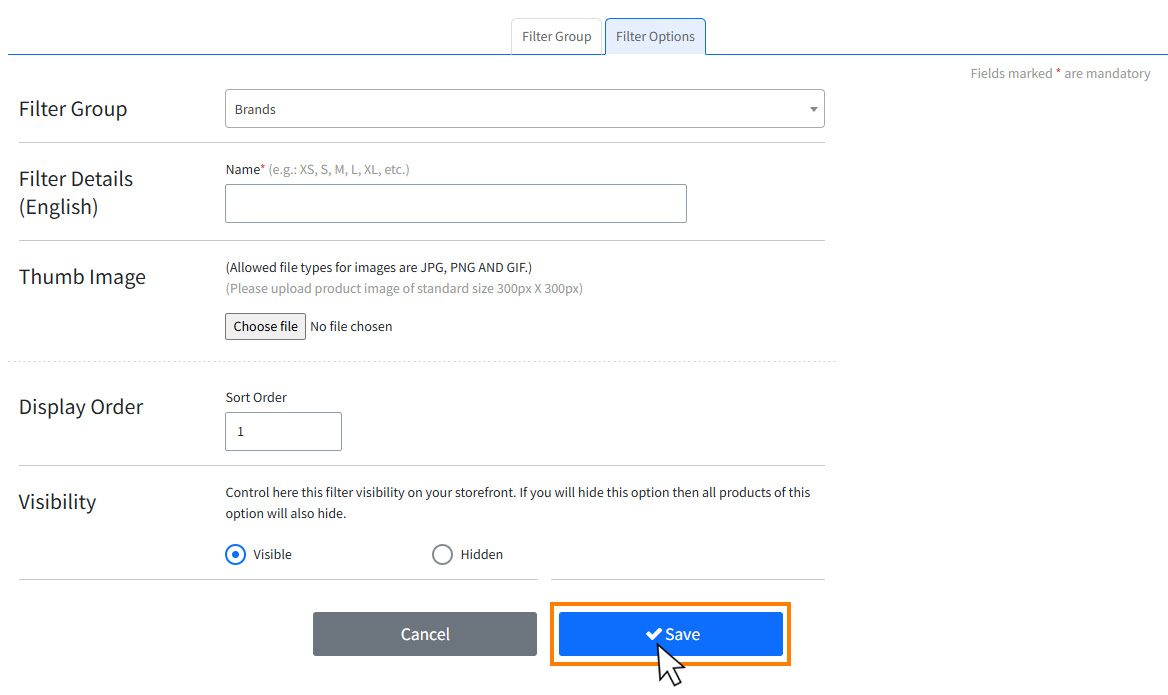
Create Filter Options
- Click on the Filter Options tab.
- Click Add Filter Options.
- Select the relevant Filter Type.
-
Fill in:
- Name: (e.g., Red, Cotton, Small).
- Image (Optional): Upload an image to represent the value.
- Display Order: Control sequence within the group.
- Visibility: Show or hide this option on the storefront.
- Click Save.
Assign Search Tags and Filters to Products
- Go to Products > Products.
- Click Add Product or Edit on an existing product.
On the Product Edit Page:
- Go to the Tags & Filter tab.
- Select and assign desired Search Tags.
- Select and assign applicable Filter Options from available filter groups.
- Click Add to apply each filter/tag.
- Repeat for multiple tags and filters if needed.
On this page